

Check Enrollment Timing and Course Access
- View
When the right learner cannot enter
Northstar Training is launching a Moodle onboarding course with different learning paths for new and experienced staff. Maya, a new employee, receives her course link on September 9, but she cannot enter the course. Her learning path may be correctly designed, yet it cannot help her until the access problem is resolved.
Access checks come before learning-path checks. In this lesson, you will separate enrollment timing from course dates, identify settings that block entry, and check whether learners have enough time to finish. The Northstar course will show how these checks support both scheduled groups and learners who join throughout the year.
Three gates before a learning path
A learner can have a Moodle account without having access to a particular course. Enrollment connects that user to the course, usually with the Student role. An enrollment method is the way that connection is created, such as manual enrollment by a staff member or self enrollment by the learner.
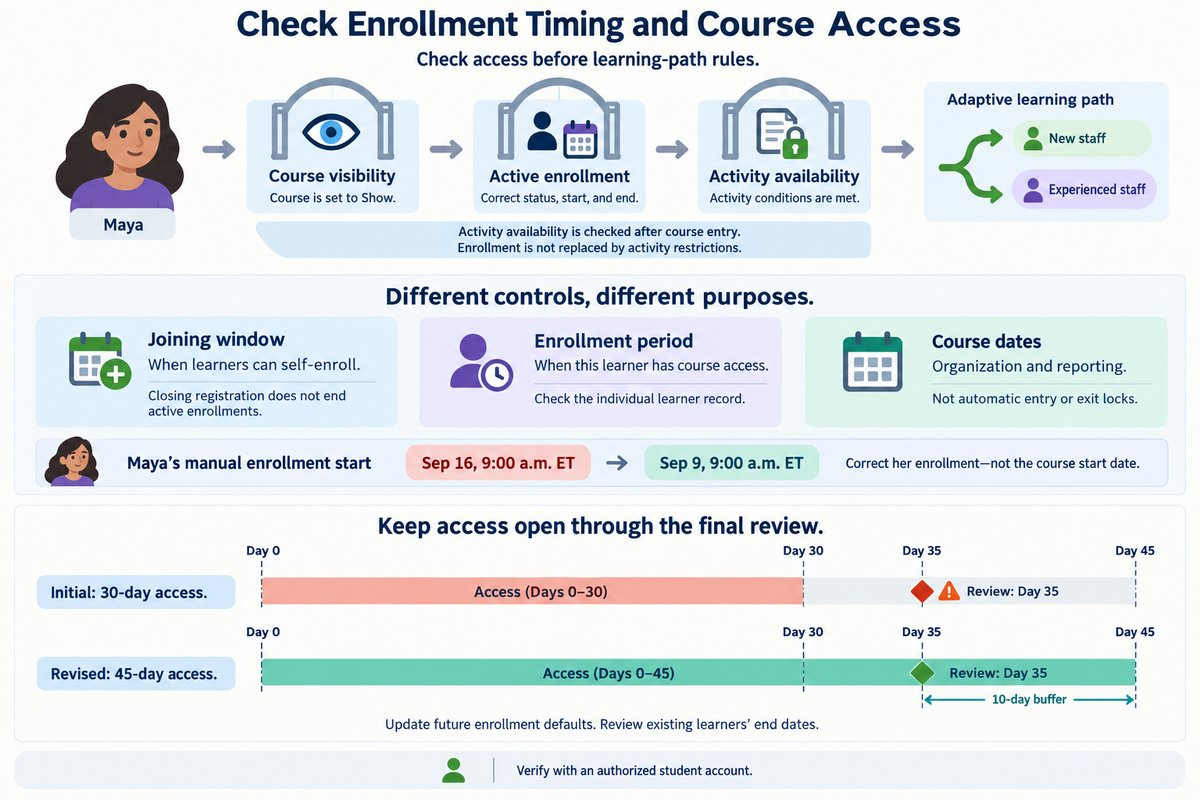
Course access depends on several settings working together. The course must be available to the learner, the learner must have a valid enrollment, and the learning material must be available within the course. Activity access restrictions are conditions that control access to individual activities or resources; they do not replace course enrollment.
| Access layer | Question it answers | Northstar example |
|---|---|---|
| Course visibility | Can ordinary learners see and enter this course? | The onboarding course is set to Show. |
| Enrollment status and timing | Does this learner have an active connection to the course now? | Maya’s enrollment starts September 9. |
| Activity availability | Can this enrolled learner open this particular item? | A review activity remains unavailable until its conditions are met. |
For a typical student, these layers act like gates in sequence. If the course is hidden, an active enrollment alone does not provide normal student access. If the learner can enter the course but cannot open one activity, the investigation moves from course access to that activity’s settings.
Separate joining dates from access dates
A registration deadline and an access deadline serve different purposes. In Moodle’s self enrollment settings, the enrollment start and end dates define when learners can enroll through that method. Enrollment duration defines how long the resulting enrollment lasts, so closing registration does not by itself end every existing learner’s access.
For Northstar’s September group, self enrollment opens September 2 and closes September 6. A learner who joins September 5 may still study after September 6 if their enrollment remains active. If Northstar also sets a limited enrollment duration, that separate setting can create an individual expiration date.
| Setting | What it controls | What it does not guarantee |
|---|---|---|
| Self enrollment start/end dates | The period when learners can join through that method | A shared access end date for existing learners |
| Enrollment duration | How long an enrollment lasts | Enough time for every later activity |
| Individual enrollment start/end | A particular learner’s enrollment period | That the course itself is visible |
| Enrollment status | Whether that enrollment is active or suspended | That every activity is available |
A common mistake is to read “enrollment ends” as “the course closes.” Another is to assume that every enrollment method uses identical timing controls. Check the actual method and learner record: a manually enrolled learner may have different dates from someone who used self enrollment.
Plan the latest required learning date before setting an access limit. For example, a learner who joins September 5 with access ending September 19 cannot use a required review that opens September 23. After changing method defaults, verify existing learner records rather than assuming that their dates have changed.
Course dates are not a course lock
A course start date can make a course appear ready for a September launch, but it does not normally prevent enrolled learners from entering before that date. The course start date supports functions such as weekly section dates and course organization. The course end date supports functions such as classifying courses as past courses; it is not normally an automatic access cutoff.
This distinction matters when preparing a course before launch. Setting Northstar’s course start date to September 9 does not safely hide unfinished material from enrolled students until September 9. Likewise, setting the course end date to October 18 does not automatically remove their access on October 19.
| Course setting | Main purpose | Access implication |
|---|---|---|
| Start date | Provides a starting date for course organization and some course formats | Does not normally block early entry |
| End date | Supports course classification and reporting functions | Does not normally close access |
| Course visibility: Hide | Hides the course from ordinary learners | Usually blocks normal student access, including for enrolled students |
| Course visibility: Show | Makes the course available to eligible users | Does not enroll anyone automatically |
Use the control that matches the intended outcome. Northstar can keep a course hidden during preparation, then make it visible when learners should enter. If only Maya needs a later start, an individual enrollment date is more suitable than hiding the course from the entire group.
Local permissions and installed extensions can affect behavior, so confirm the result with an ordinary student account. Teachers and administrators may have permission to see hidden courses or bypass some restrictions. Their successful access is not reliable evidence that Maya can enter.
Check access from the outside inward
The fastest diagnosis begins with the learner’s symptom, not with changing several settings at once. “I cannot find the course” points toward different checks from “I can enter, but the review is locked.” Moodle navigation varies by version and theme, but course settings, Participants, and Enrollment methods provide the main places to inspect.
Use a controlled sequence so each finding leads to one clear decision. The steps below describe an access review for Northstar’s course, not a change to its learning-path rules. Keep the learner’s identity and expected access dates available throughout the check.
- Identify the affected learner and course. Input: Maya’s account and the onboarding course link. Output: confirmation that the issue concerns the correct account and course.
- Check course visibility. Input: the course’s visibility setting under course settings. Output: confirmation that the course is intentionally shown or hidden.
- Inspect the learner’s enrollment. Input: Maya’s record under Participants. Output: her enrollment method, status, and any enabled start and end dates.
- Inspect the enrollment method. Input: the relevant method under Enrollment methods. Output: confirmation that it is enabled and that its joining rules match the intended access plan.
- Confirm the student experience. Input: an authorized test student account with matching settings. Output: evidence that the learner can enter and reach the expected material.
For self enrollment, check both whether the method is enabled and whether new enrollments are allowed. A method can support existing learners while no longer accepting new ones. For a learner who already has an enrollment, inspect that enrollment instead of treating the registration window as the only possible cause.
Pay attention to time as well as date. A September 9 start at 9:00 a.m. is different from a September 9 start at midnight, and Moodle displays times according to relevant time-zone settings. Record a precise release time, such as September 9 at 9:00 a.m. Eastern Time, when communicating a scheduled opening.
Resolve Maya’s delayed start
Find the Gate Blocking Maya
Northstar’s onboarding course is visible, and Maya has been manually enrolled. Her manager expects her to begin September 9, but her enrollment starts September 16 at 9:00 a.m. Eastern Time. Changing the course start date would not correct the individual enrollment error.
- Confirm the intended start. Input: the manager’s September 9 approval. Output: a verified access date for Maya.
- Inspect Maya’s enrollment. Input: her participant enrollment details. Output: identification of the incorrect September 16 start.
- Correct the individual date. Input: September 9 at 9:00 a.m. Eastern Time. Output: an enrollment period aligned with her approved start.
- Verify access. Input: an authorized student-access check after the intended opening time. Output: confirmation that the course-entry problem is resolved.
This correction affects Maya without changing the release plan for other employees. It also preserves the learning path’s existing activity conditions. The limitation is important: successful course entry does not prove that every activity is correctly available, so any remaining activity-level issue needs a separate check.
Keep access open through the final review
Northstar also offers the same onboarding course to employees who join throughout the year. In this version, self enrollment remains open, and each learner needs access through a manager review scheduled 35 days after joining. A 30-day enrollment duration creates a predictable gap before that review.
| Planning detail | Initial setup | Revised setup |
|---|---|---|
| Self enrollment window | Open throughout the year | Open throughout the year |
| Enrollment duration | 30 days | 45 days |
| Manager review timing | Day 35 | Day 35 |
| Access coverage | Ends before the review | Covers the review with a 10-day buffer |
The course creator first checks the full required timeline, then changes the duration for future enrollments to 45 days. Next, the creator reviews existing learners’ end dates and updates affected records where appropriate. Finally, a test student confirms that the intended access period covers the review.
The longer period supports the review without requiring unlimited course access. It also gives the training team a clear rule to communicate during onboarding. However, learners whose reviews are delayed beyond day 45 still need an approved extension; a buffer reduces timing problems but does not remove every exception.
Reliable access supports every path
-
Separate the controls: joining windows, enrollment periods, course visibility, and activity availability serve different purposes.
-
Match access to the full timeline: include required reviews and a reasonable completion buffer.
-
Check the individual learner: method defaults alone do not prove that an existing enrollment is correct.
-
Verify as a student: staff permissions can hide access problems.
A well-designed adaptive path must be reachable before it can be useful. These access checks give your course a dependable foundation: the right learners can enter at the right time and remain long enough to complete their required work. Clear timing decisions also make learner support faster and course launches more predictable.