

Connecting and Checking the Route Through Course A
- View
A learner passes the first quiz in Course A, but the next activity stays locked. Another learner fails the same quiz and sees no clear way to continue. The content may be useful, yet the route through it is broken.
This lesson uses Course A, a workplace data privacy course, as a working example. You will see how to connect its activities, set access rules, and check the route from a learner’s view. The goal is simple: each learner should have a clear, reachable next step.
Make the route clear before setting rules
In Course A, learners first take a Starting Check, a short quiz about handling personal data. A score of 80% or higher opens the Customer Data Case, where learners apply their knowledge. A lower score opens Privacy Review, followed by a Readiness Check; passing that check also opens the case.
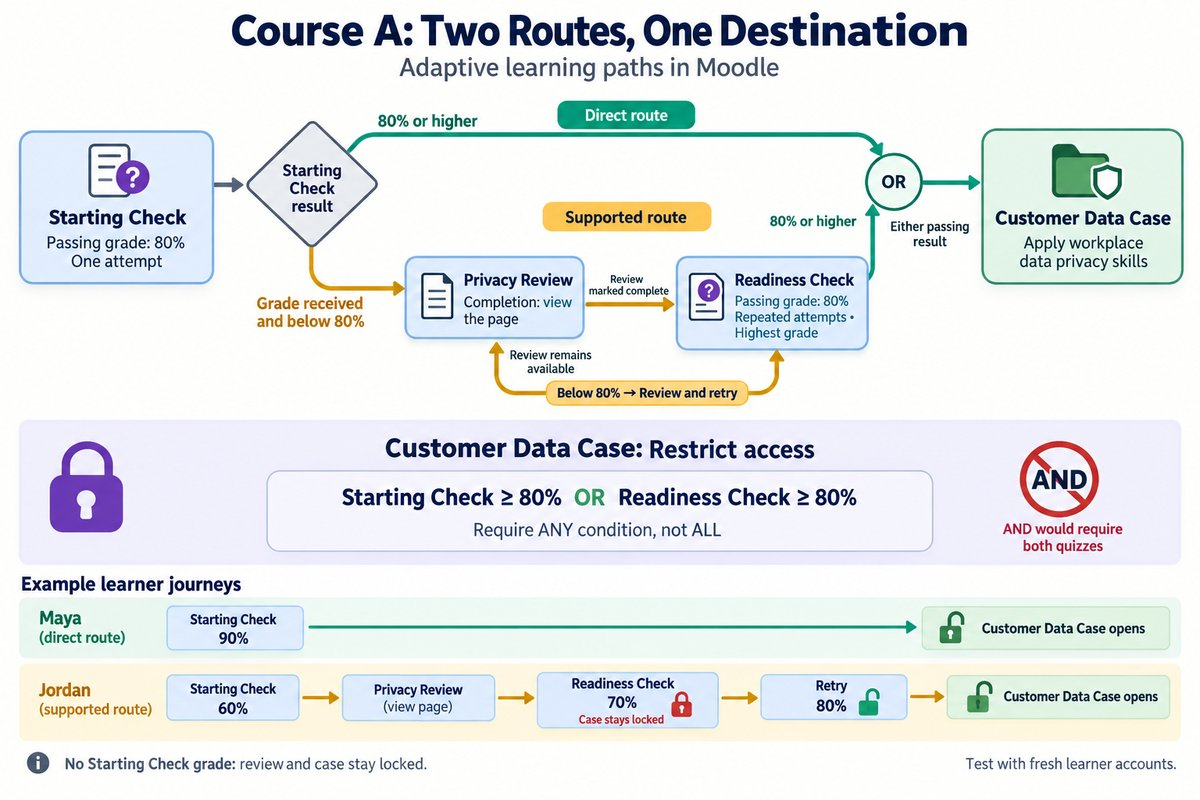
[[flowchart-placeholder]]
This is an adaptive learning path: a route that changes according to a learner’s results or progress. The route needs more than links between activities. Moodle must also know which conditions allow access, and learners need a clear explanation of what to do next.
For this example, both quizzes use a grade scale of 0–100, with a passing grade of 80. The Starting Check allows one attempt, while the Readiness Check allows repeated attempts and uses the highest grade. These are design choices for Course A, not required Moodle defaults.
| Route detail | Direct route | Supported route |
|---|---|---|
| Starting Check result | 80% or higher | Below 80% |
| Next activity | Customer Data Case | Privacy Review |
| Additional requirement | None | Complete the review, then pass the Readiness Check |
| Shared destination | Customer Data Case | Customer Data Case |
The shared destination matters: both routes prepare learners for the same application activity. Support changes the journey, not the final learning goal. Before entering Moodle settings, a route table like this helps reveal missing links and unclear rules.
Give Moodle clear evidence of progress
A learner opens Privacy Review, reads the guidance, and reaches the end. Moodle still needs a defined signal before it can treat that activity as complete. Activity completion is the record that an activity has met its chosen completion conditions, such as being viewed or receiving a passing grade.
For Course A, Privacy Review is a Page resource with completion set to require viewing. The Readiness Check uses that completion record to control access. Viewing is a useful signal that the learner reached the resource, but it does not prove understanding; the quiz provides that evidence. Matching each condition to its purpose keeps the route simple without making weak claims about learning.
A grade, a passing grade, and completion are related but different. A quiz result of 60 is a grade, but it is not a pass when the passing grade is 80. Likewise, a quiz can be recorded as complete after an attempt without the learner passing, depending on its settings. A common mistake is to unlock the next activity when a quiz is merely complete, even though the intended requirement is a pass.
The following setup gives Course A usable progress signals. Moodle labels and settings locations can vary by version, theme, and administrator choices. Completion tracking must be enabled for the relevant settings to appear.
- Enable tracking: In the course settings, turn on completion tracking; this makes activity completion settings available.
- Define the quiz threshold: Set Grade to pass to 80 for each quiz; this establishes the passing result.
- Record review access: In Privacy Review’s completion settings, require the learner to view the activity; this produces the completion record used by the Readiness Check.
- Check quiz completion: If the route uses a “completed with pass grade” condition, configure the quiz completion settings to record a pass, rather than only an attempt.
Turn the route into access conditions
Two Routes, One Open Door
A learner’s result does not automatically connect one activity to another. The destination activity needs a rule that reads that result and decides whether access is allowed. In Moodle, Restrict access controls when an activity or resource becomes available.
For Course A, Privacy Review needs two conditions: the learner must have received a Starting Check grade, and that grade must be below 80%. The “must have a grade” condition prevents the review from appearing before the learner has attempted the quiz. The Readiness Check then requires completion of Privacy Review. These conditions create a route with a clear entry point, rather than offering remedial work to everyone at course entry.
The Customer Data Case needs OR logic, meaning either qualifying result can open it. Its rule is: Starting Check grade is at least 80%, OR Readiness Check grade is at least 80%. Using AND logic, which requires every condition, would wrongly force learners on the direct route to pass both quizzes. Restriction sets let you group conditions when a route needs combinations of AND and OR.
Use the following configuration as a worked model. Grade restrictions in Moodle use percentages, so these values match the example’s 0–100 quiz scales. In the restriction interface, look for the controls that require all or any conditions to match.
| Destination | Access conditions | Required relationship |
|---|---|---|
| Privacy Review | Starting Check grade at least 0% and below 80% | Both conditions must match |
| Readiness Check | Privacy Review marked complete | One completion condition |
| Customer Data Case | Starting Check grade at least 80%, or Readiness Check grade at least 80% | Either condition may match |
- Connect the review: Open Privacy Review’s settings and add the Starting Check grade restrictions; the review becomes available only after a result below 80%.
- Connect the second check: Open the Readiness Check’s settings and add an activity completion restriction for Privacy Review; viewing the review unlocks the quiz.
- Connect the shared destination: Open the Customer Data Case’s settings and add the two passing-grade restrictions; set the group to require any condition.
- Explain the route: Add short instructions to each activity description; learners can identify their next step without interpreting Moodle’s rules.
Keep the route visible and recoverable
A locked activity can either remain visible with access information or be hidden until its conditions are met. In Moodle’s restriction settings, the eye control governs this display behavior. For Course A, showing the Customer Data Case while it is locked helps learners understand the destination and the reason they cannot open it yet.
Visibility does not replace clear instructions. A learner with 60% needs a message such as, “Open Privacy Review, then pass the Readiness Check with at least 80%.” A learner who passes the Starting Check needs a different message: “You can now open the Customer Data Case.” Quiz feedback and activity descriptions can carry these directions; the access rules still enforce them.
A dead end occurs when a learner cannot meet any condition that would allow progress. For example, a learner who scores 70% on a one-attempt Readiness Check cannot reach the case unless another recovery option exists. Course A avoids that problem by allowing repeated Readiness Check attempts and using the highest grade. The review stays available, so learners can return to the guidance before trying again.
| Design choice | Useful effect | Limit to remember |
|---|---|---|
| Show a locked destination | Makes the route easier to understand | Restriction text may need clearer supporting instructions |
| Hide an unavailable activity | Reduces visible clutter | Can make the next step harder to discover |
| Allow repeated Readiness Check attempts | Provides a recovery route | Repetition alone does not guarantee learning |
Follow a passing learner through the route
A course creator checks the direct route using a test learner named Maya. Maya scores 90% on the Starting Check, so the Customer Data Case should open immediately. Privacy Review and the Readiness Check should not be required for her progress.
The creator checks access rather than relying only on completion icons. A visible activity title does not prove that Maya can open it, and a teacher’s view may bypass restrictions. This check confirms that a prepared employee can reach the application activity without unnecessary review, while leaving the quality of that employee’s knowledge to the assessment design.
- Start with a clean record: Enroll a fresh test learner in Course A; the Starting Check is available and the case is locked.
- Submit a passing attempt: Complete the Starting Check with 90%; Moodle records a result above the 80% threshold.
- Open the destination: Select the Customer Data Case; the activity opens without requiring the review or Readiness Check.
- Inspect the alternative route: Check Privacy Review; it remains unavailable under the below-80% rule.
Follow a learner who needs support
The creator checks the supported route with another fresh test learner, Jordan. Jordan scores 60% on the Starting Check, views Privacy Review, and then scores 70% on the Readiness Check. The case must remain locked at that point, but Jordan must still have a clear way forward.
Jordan then earns 80% on a second Readiness Check attempt. With highest-grade grading, the recorded result becomes 80%, and the Customer Data Case opens. This check covers support, recovery, and the exact passing boundary in one route. It confirms the access behavior, but it does not show whether the review fully addresses learners’ knowledge gaps.
- Submit the starting result: Complete the Starting Check with 60%; Privacy Review becomes available while the case stays locked.
- Open the review: View Privacy Review; its completion record unlocks the Readiness Check.
- Submit a nonpassing result: Earn 70% on the Readiness Check; the case stays locked and another attempt remains available.
- Meet the threshold: Earn exactly 80% on the next attempt; the recorded highest grade unlocks the case.
Check boundaries, not just successful routes
A route can work for Maya and still fail for another learner. Boundary checks examine the points where access changes, such as the difference between 79% and 80%. They also cover learners who have not yet submitted any work.
Use actual learner accounts or an approved test-account process for end-to-end checks. Switch role to Student can help inspect presentation, but it does not create a separate learner history with independent grades and completion records. Fresh accounts make the results easier to interpret and prevent old test grades from opening activities unexpectedly.
| Test state | Expected result | Problem it can reveal |
|---|---|---|
| No Starting Check grade | Review and case locked | Review offered before assessment |
| Starting Check at 79% | Review open; case locked | Incorrect cutoff |
| Starting Check at 80% | Case open | Passing boundary excluded |
| Review not complete | Readiness Check locked | Missing completion restriction |
| Readiness Check at 80% after review | Case open | AND used where OR is needed |
When a result differs from the plan, inspect the destination’s restrictions first. Then check the source activity’s grade, completion settings, and attempt rules. Also inspect section-level restrictions, which can block access even when an activity’s own conditions are satisfied.
A route learners can trust
-
Map the route before configuring it: Identify the starting point, support path, and shared destination.
-
Use the right evidence: Viewing, completion, and passing grades serve different purposes.
-
Connect conditions carefully: AND requires every condition; OR allows alternative routes.
-
Check real learner states: Test entry, passing boundaries, unsuccessful attempts, and recovery.
A reliable adaptive path combines clear teaching decisions with accurate Moodle settings. Course A now offers a direct route for prepared learners and a supported route for those who need more help. The same approach helps you build courses where learners understand both where they are going and how to get there.