

Access Rules for Micro-Routes
- View
Give each learner a useful next step
In Course A, the workplace safety course, some learners need help recognizing hazards, while others are ready for a challenge. The Safety Check quiz provides evidence for this decision. Your next step is to use that evidence to control which activities learners can open.
By the end of this lesson, you will be able to set grade-based access rules, combine them with completion requirements, and explain locked activities clearly.
Match the rule to the learning decision
A micro-route is a short path through selected course activities based on a learner’s needs or progress. It describes your course design, not a separate Moodle feature.
An access rule controls whether a learner can open a course item. You create these rules under Restrict access in an activity or resource’s settings. Each restriction is one condition, such as a required grade or completed activity.
Think of the restriction as a gate: the learner’s evidence must match the rule before the gate opens.
For Course A, the decision is:
-
Safety Check grade below 80%: Open Hazard Review.
-
Safety Check grade of at least 80%: Open Advanced Hazard Challenge.
-
No recorded grade: Keep both routes locked.
Use this memory aid: evidence → rule → destination. Choose the evidence first, define the condition, and add it to the item you want to control.
Choose the right evidence
Moodle can record both activity completion and grades, but they answer different questions.
Activity completion records whether an activity’s configured requirements have been met. A grade restriction checks whether a recorded score falls within a chosen range.
| Your decision | Evidence to use | Course A example |
|---|---|---|
| Has the learner finished a required step? | Activity completion | Hazard Review has been marked complete |
| Does the learner’s performance meet a threshold? | Grade | Safety Check grade is at least 80% |
Completion depends on the source activity’s settings. A page might require viewing, while a quiz might require a grade or a passing grade. Configure the source activity’s completion requirements before using its completion status to control another item.
Opening Hazard Review can show that a learner visited the page. It does not prove that they read it carefully or understood it. Use completion to control sequence, and use suitable assessment evidence to make decisions about understanding.
Quick check: You want learners to score at least 80% before opening the challenge. Is a restriction requiring “Safety Check complete” enough?
Answer: Not necessarily. If the quiz is complete whenever a learner receives a grade, a score of 60% could meet that condition. Use a grade restriction for the performance threshold.
Set score boundaries without gaps
Course A uses 80% as the dividing point between review and challenge. In Moodle’s grade restrictions, a lower boundary includes the stated value, while an upper boundary excludes it.
-
At least 80% includes exactly 80%.
-
Less than 80% excludes exactly 80%.
Together, these rules cover all recorded grades without a gap or overlap.
| Safety Check state | Hazard Review: less than 80% | Advanced Hazard Challenge: at least 80% |
|---|---|---|
| No recorded grade | Locked | Locked |
| 60% | Available | Locked |
| 79.5% | Available | Locked |
| 80% | Locked | Available |
| 95% | Locked | Available |
An absent grade is not zero. A learner needs a recorded grade to satisfy either range, so both routes remain locked until a grade is available.
Avoid setting review to “less than 79%” and challenge to “at least 80%.” A grade of 79.5% would fit neither route.
Also, a quiz’s grade to pass—its configured passing threshold—does not automatically control access to later items. Add a restriction to each destination that needs one.
Build the review and challenge routes
The Safety Check quiz is worth 10 points, so 8 out of 10 equals 80%. Moodle’s grade restrictions use percentages, not raw points.
Add the rules to the destination items, not to the quiz that provides the grade.
- Open Hazard Review settings. Expand Restrict access and select Add restriction.
- Choose Grade. Select Safety Check as the grade source.
- Set the upper boundary to less than 80%. Leave the lower boundary unset, then save.
- Open Advanced Hazard Challenge settings. Add a Grade restriction using Safety Check.
- Set the lower boundary to at least 80%. Leave the upper boundary unset, then save.
The result is a simple route:
Safety Check → below 80%: Hazard Review / at least 80%: Advanced Hazard Challenge
A learner with 6 out of 10 points can open the review. A learner with 8 out of 10 points can open the challenge.
These rules do not permanently assign learners to a route. Moodle uses the current recorded grade. If retakes are allowed, the quiz’s grading method—the rule used to select or calculate the final grade from attempts—can affect which route becomes available.
Combine conditions only when needed
A single grade restriction is enough for each route above. Add another condition only when it supports a separate learning requirement.
Moodle can require all conditions or any condition in a restriction group. This is AND/OR logic: rules joined by “and” or “or.”
| Group setting | Meaning | Memory aid |
|---|---|---|
| All | Every condition must be true | Meet every requirement |
| Any | At least one condition must be true | One condition is enough |
Suppose Safety Check is marked complete whenever a learner receives a grade. Consider these two restrictions on Advanced Hazard Challenge:
-
Safety Check is complete.
-
Safety Check grade is at least 80%.
A learner with 60% meets the completion condition but not the grade condition. With all, the challenge stays locked. With any, completion alone opens it.
Same Conditions, Different Access
Quick check: Would adding completion improve the challenge rule if the only requirement is a recorded grade of at least 80%?
Answer: No. The grade restriction already expresses that requirement. An extra completion condition adds complexity without improving the learning decision.
Extend the review route with a required step
Continuing in Course A, learners on the review route must open Hazard Review before starting Review Follow-Up. This requires two conditions: a grade below 80% and completion of the review page.
- Enable completion tracking. In the course settings, check that completion tracking is enabled.
- Configure Hazard Review completion. Use automatic completion with a requirement to view the page, then save.
- Open Review Follow-Up settings. Expand Restrict access and set the group to require all conditions.
- Add a Grade restriction. Select Safety Check and set the upper boundary to less than 80%.
- Add an Activity completion restriction. Require Hazard Review to be marked complete, then save.
The intended result is:
| Learner state | Review Follow-Up |
|---|---|
| Grade is 60%; Hazard Review not complete | Locked |
| Grade is 60%; Hazard Review complete | Available |
| Grade is 85%; Hazard Review complete | Locked |
Keeping the grade restriction on the follow-up matters. If the learner’s grade later rises to 85%, an earlier completion record should not give them access to an item intended only for the review route.
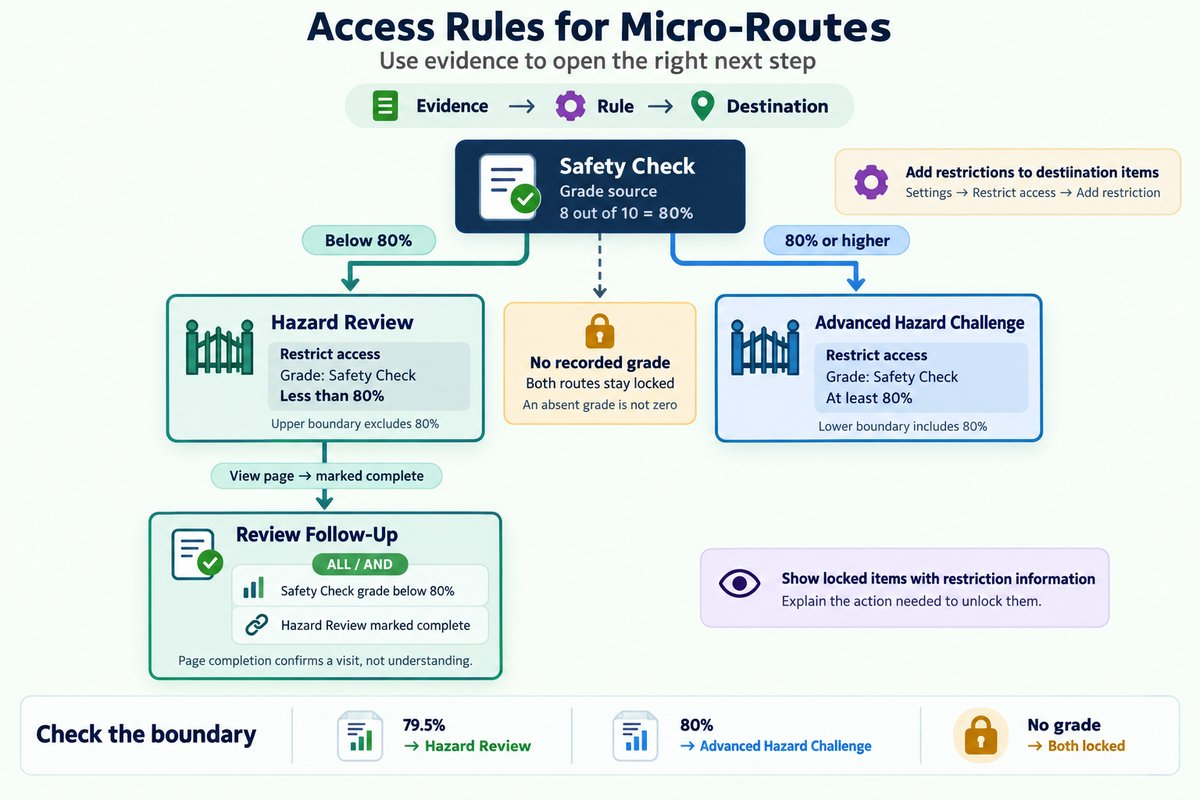
This sequence confirms a page visit, not mastery. If the course needs proof of understanding after review, use an assessment rather than relying on viewing alone.
Make locked activities understandable
Moodle lets you show a restricted item with information about its requirements or hide it until the relevant conditions are met.
| Visibility choice | When it helps | Main risk |
|---|---|---|
| Show with restriction information | Learners need to see the next step and its requirements | Too many locked items can be distracting |
| Hide until eligible | An alternative route would add clutter | Learners may not know the route exists |
The visibility control usually appears as an eye icon beside a restriction. Its appearance can vary by Moodle version or theme. With several restrictions, visibility depends on which unmet conditions are set to hide the item.
For Course A, keep both destinations visible with restriction information so learners can understand the two routes. Add brief guidance near Safety Check:
Complete Safety Check to unlock a route based on your score. A grade below 80% opens Hazard Review. A grade of at least 80% opens Advanced Hazard Challenge.
For Review Follow-Up, use:
Available when your Safety Check grade is below 80% and Hazard Review is marked complete. Open Hazard Review to meet the page-view requirement.
Describe the required action, not the learner’s ability. Avoid labels such as “weak learners” or claims that opening a page means it has been understood.
Practice: complete the rule plan
Before editing Moodle, write the destination rules for Course A.
| Destination | Grade condition | Completion condition | Group setting |
|---|---|---|---|
| Hazard Review | ? | None | One condition |
| Advanced Hazard Challenge | ? | None | One condition |
| Review Follow-Up | ? | ? | ? |
Then predict what a learner with exactly 80% can open.
Check your plan:
-
Hazard Review: Safety Check grade less than 80%.
-
Advanced Hazard Challenge: Safety Check grade at least 80%.
-
Review Follow-Up: Safety Check grade less than 80% and Hazard Review marked complete; require all conditions.
-
Exactly 80%: The challenge is available. The review and its follow-up are locked.
If you have an editable practice course, apply these restrictions to the three destinations. Check each item’s grade source, boundary, and visibility setting before saving.
Key takeaways
-
Match evidence to purpose: Grades support performance decisions; completion supports configured progress requirements.
-
Use matching boundaries: “Less than 80%” and “at least 80%” cover recorded grades without a gap.
-
Keep logic simple: All requires every condition; any needs only one.
-
Explain the next action: Learners should understand why an item is locked and what they need to do.
Next, you will connect and check the route through Course A.