

Progress Signals and Activity Completion
- View
Make learner progress visible
A customer support team is moving its onboarding course into Moodle. Some new employees already know the company’s service standards, while others need more support. The course creator wants each learner to receive suitable learning activities, but first needs reliable evidence of progress.
A learner who opens a guide has done something different from a learner who passes a knowledge check. If Moodle records both actions simply as “done,” the course creator may draw the wrong conclusion. This lesson shows how to choose clear progress signals and record them through activity completion.
By the end of this lesson, you will be able to:
-
Explain what an activity completion record does—and does not—show.
-
Choose suitable completion conditions for common learning activities.
-
Identify settings that can produce misleading progress records.
-
Describe a simple completion setup for an onboarding course.
Start with the evidence you need
A learner opens the onboarding guide, completes a quiz, and earns a score of 80%. Each event provides different evidence about the learner’s progress. A progress signal is a recorded action or result that helps you understand where a learner is in a course. It is a design term here, not the name of a single Moodle setting.
An adaptive learning path is a course sequence that changes according to learner information, such as progress or performance. Reliable signals provide the foundation for these paths. However, a signal is only useful when its meaning is clear: opening the onboarding guide shows access, while passing a well-designed quiz provides evidence of knowledge.
Before selecting a Moodle setting, complete this sentence: “This activity counts as complete when the learner…” For the onboarding guide, the answer might be “opens the guide.” For the service standards quiz, it might be “earns at least 80%.” These statements connect the learning purpose to an observable event without claiming more than the event can prove.
| Design question | Opening the onboarding guide | Passing the service standards quiz |
|---|---|---|
| What is recorded? | The learner accesses the resource. | The learner meets the required score. |
| What does it support? | Evidence that the guide was opened. | Evidence of performance on the tested knowledge. |
| What remains unknown? | Whether the learner read or understood it. | Whether the learner can apply every skill at work. |
| Suitable meaning | “Accessed the reference material.” | “Met the knowledge-check standard.” |
Choose how Moodle records completion
When a learner opens a resource, Moodle can update its completion status automatically. Alternatively, the learner can mark an activity complete themselves. Activity completion is Moodle’s feature for recording whether a learner has met the selected completion conditions for an activity or resource.
Moodle generally offers three approaches: no completion tracking, manual completion, and automatic completion. With manual completion, learners mark the item complete themselves. With automatic completion, Moodle checks the conditions selected by the course creator. Available conditions depend on the activity type, so a Page resource and a Quiz activity do not offer exactly the same choices.
For the onboarding guide, automatic completion based on viewing is a reasonable choice if the goal is to record access. Manual completion would also be possible if the intended signal were “the learner confirms they have finished reviewing this guide.” Neither choice proves understanding. The best choice is the one that matches the claim you want the completion record to support.
A common misconception is that automatic completion always provides stronger evidence. It provides more consistent recording of the selected event, but the event may still be weak evidence of learning. Automatically recording that someone opened a page does not turn that action into proof of knowledge.
| Decision point | No tracking | Manual completion | Automatic completion |
|---|---|---|---|
| Who or what determines completion? | No completion status is recorded. | The learner marks the item complete. | Moodle checks selected conditions. |
| Suitable use | Optional material that needs no progress record. | A learner confirms a self-directed review. | A view, submission, grade, or other supported condition must be recorded. |
| Main limitation | No completion signal is available. | Self-report may not match actual performance. | The signal is only as meaningful as its conditions. |
Set conditions that match the learning goal
A Grade Isn't Always a Pass
A quiz can record a grade without the learner reaching the required standard. This is why receiving a grade and receiving a passing grade must not be treated as the same condition. A grade to pass is the score threshold that separates a passing result from a result below the required standard.
For the service standards quiz, suppose the required score is 8 out of 10. A completion rule that only requires a grade can mark the activity complete after a score of 5 out of 10. That may be correct if completion means “attempted the quiz and received a result.” It is not suitable if completion is intended to mean “met the service standards knowledge requirement.”
When several automatic conditions are selected, Moodle generally requires all selected conditions to be met. Adding a viewing requirement to a passing-grade requirement does not usually create an alternative route to completion. Select only the conditions needed to represent the intended evidence, and check activity-specific options carefully.
The key distinction is between completion and success. Depending on the activity and settings, Moodle can distinguish completion with a pass or fail result. A record can therefore show that an activity is finished without showing that the learner met the learning standard.
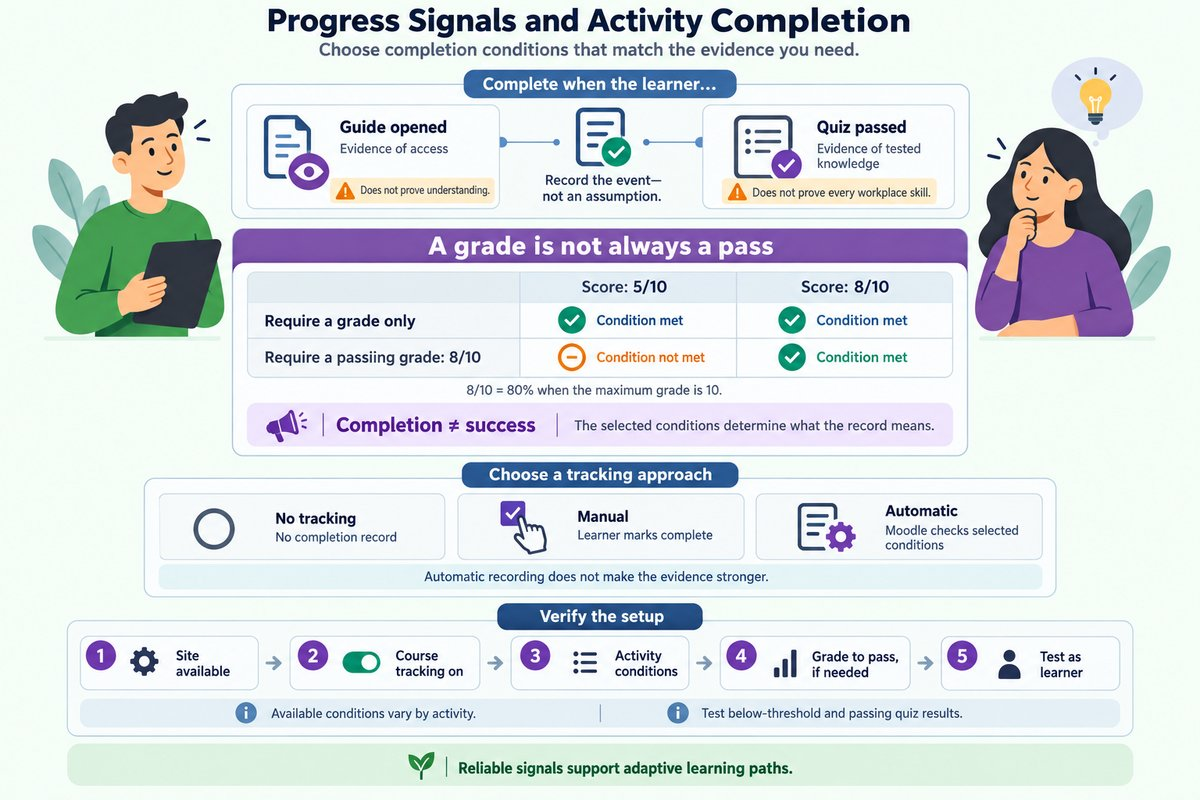
| Quiz setting | Result at 5/10 | Result at 8/10 |
|---|---|---|
| Require a grade only | The grade condition is met. | The grade condition is met. |
| Require a passing grade of 8/10 | The passing-grade condition is not met. | The passing-grade condition is met. |
Prepare completion tracking in Moodle
Completion tracking must be available before an activity can produce a completion record. A Moodle administrator controls whether the feature is available at the site level, and the course also needs completion tracking enabled. Labels and screen locations vary by Moodle version and site configuration, but the relationship between these settings remains the same.
The following setup uses the support onboarding course as its example. It moves from the course-level setting to the individual activity’s conditions. Each step creates a specific result that the next step depends on.
- Confirm site availability: Check whether activity completion settings appear in the course. If the feature is unavailable, ask the Moodle administrator to confirm that completion tracking is enabled.
- Enable course tracking: Open the onboarding course settings and enable completion tracking. The course can now use completion records for its activities.
- Open the activity settings: Edit the onboarding guide or service standards quiz and locate its completion settings. The available tracking approaches and conditions become visible.
- Select the intended conditions: Set the guide to complete when viewed, or set the quiz to require a passing grade. Saving applies those conditions to that item.
- Check the recorded result: Use a separate test learner account to complete the item. Review the learner’s displayed status and the course’s activity completion report.
A teacher’s view alone does not confirm that completion works correctly for learners. A test learner account helps check the full experience, including whether the expected action changes the recorded status. For the quiz, testing a result below the threshold and a passing result helps reveal an incorrect grade-only condition.
Avoid changing completion conditions casually after learners have started. Moodle may lock settings or warn that changing them affects existing completion information. Review the warning and the effect on current learners before making changes.
Example: record access to the onboarding guide
The support team’s guide explains how to find approved responses and escalation contacts. Its purpose is to provide a reference that employees can return to during work. The course creator wants a record that each learner has opened it, not a claim that the learner has memorized every instruction.
The creator uses automatic completion with a viewing condition. This produces a simple, consistent signal and avoids asking learners to confirm an action that Moodle can record directly. The signal supports onboarding progress checks, but it remains evidence of access rather than reading time or understanding.
- Define the input: The course contains a Page resource named “Support response guide.” The intended completion statement is “The learner opens the guide.”
- Select the condition: The creator chooses automatic completion and requires viewing. The resource is ready to record access.
- Trigger the event: A test learner opens the guide. Moodle records that the viewing condition has been met.
- Check the outcome: The creator reviews the completion record. The result supports the statement “guide accessed,” not “service standards mastered.”
This setup helps the onboarding coordinator identify learners who have not yet accessed the reference material. It also keeps the progress record honest by limiting its meaning to an observable action. If the team needs evidence of understanding, the guide’s completion record alone cannot supply it.
Example: record the required quiz standard
The same onboarding course includes a 10-point service standards quiz. The team sets the passing threshold at 8 points, and the completion goal is to record that learners meet this standard. The creator therefore needs both a defined passing threshold and a completion condition that uses it.
The creator checks the quiz’s maximum grade before entering the threshold. A value of 8 represents 80% only when the maximum grade is 10; with a maximum grade of 100, the equivalent threshold is 80. This small check prevents a setting that looks reasonable but records the wrong standard.
- Confirm the grading scale: The quiz maximum grade is 10. The required passing score is therefore 8.
- Set the threshold: The creator enters 8 as the grade to pass. Moodle now has a defined passing standard.
- Set completion: The creator selects automatic completion and the passing-grade requirement. A grade alone is not enough to meet this condition.
- Check a below-threshold result: A test learner earns 6 out of 10. The passing-grade condition remains unmet.
- Check a passing result: A test learner earns 9 out of 10. The passing-grade condition is met.
The onboarding coordinator now has a clearer signal for tracking the knowledge requirement. However, the strength of that signal still depends on the quiz questions: a passing score only supports the knowledge they actually assess. Completion settings record evidence; they do not improve the quality of the assessment itself.
Build progress records you can trust
Reliable progress records begin with a clear statement about what each activity should show. Moodle can then record the action or result that matches that statement. This keeps course progress useful for both learners and course creators.
-
Define the evidence first: Decide what “complete” should mean before choosing settings.
-
Match the condition to the purpose: Viewing, self-report, receiving a grade, and passing show different things.
-
Check the full setup: Site availability, course tracking, activity conditions, and grading settings must work together.
-
Verify the learner experience: Confirm that the intended event produces the expected completion record.
Next, we'll build on this by exploring Access Rules for Micro-Routes.